European ASP.NET MVC 4 and MVC 5 Hosting

BLOG about ASP.NET MVC 3, ASP.NET MVC 4, and ASP.NET MVC 5 Hosting and Its Technology - Dedicated to European Windows Hosting Customer

ASP.NET MVC 6 Hosting - HostForLIFE.eu :: Boosting Your ASP.NET Core MVC Project: A Comprehensive Guide to Swagger/OpenAPI API Configuration

clock October 20, 2026 11:28 by author Peter

Modern web development often demands a hybrid approach. While traditional ASP.NET Core MVC projects are famous for rendering server-side HTML views using Razor, many applications also need to expose robust RESTful APIs to power mobile apps, single-page applications (SPAs), or third-party integrations.

When you build APIs, documenting them clearly is just as important as writing the code. This is where Swagger (OpenAPI) comes in. Swagger automatically generates interactive documentation, allowing developers, testers, and clients to explore and test your endpoints directly from a web browser without needing external tools like Postman. In this comprehensive guide, we will walk through setting up Swagger in an ASP.NET Core MVC project step by step.

Why Use Swagger in an MVC Project?
ASP.NET Core MVC naturally handles both MVC controllers (which return views) and API controllers (which return JSON/data). Integrating Swagger into this setup offers several key benefits:

  • Interactive Documentation: Generates a clean UI where users can see endpoints, HTTP methods, request parameters, and response models.
  • Live Testing: Allows you to execute requests directly via the "Try it out" feature.
  • Standards Compliance: Built on the OpenAPI Specification, making it universally recognized across different development tools and ecosystems.

Step 1: Install the Swashbuckle NuGet Package
ASP.NET Core does not include Swagger generation out of the box, but the open-source Swashbuckle.AspNetCore package makes integration seamless. It consists of a Swagger generator, a Swagger document middleware, and a built-in Swagger UI.

Open your terminal, navigate to your project directory, and run the following command:
dotnet add package Swashbuckle.AspNetCore

(Alternatively, you can install it via the NuGet Package Manager UI in Visual Studio by searching for Swashbuckle.AspNetCore).
Step 2: Register Swagger Services in Program.cs

Next, you need to configure the Dependency Injection container in your Program.cs file. Because an MVC project handles both views and API controllers, you want to ensure controller support is enabled alongside the API metadata explorers.

Update your Program.cs file with the following configuration:
var builder = WebApplication.CreateBuilder(args);

// 1. Add services to the container (supports both MVC views and API controllers)
builder.Services.AddControllersWithViews();

// Required to gather metadata for API endpoints
builder.Services.AddEndpointsApiExplorer();

// Register the Swagger generator, defining a Swagger document
builder.Services.AddSwaggerGen(options =>
{
    options.SwaggerDoc("v1", new Microsoft.OpenApi.Models.OpenApiInfo
    {
        Title = "My Hybrid ASP.NET Core MVC API",
        Version = "v1",
        Description = "An API documentation guide for my MVC and Web API project."
    });
});

var app = builder.Build();


Step 3: Configure the Middleware Pipeline
Once the services are registered, you must configure the HTTP request pipeline to serve the Swagger JSON file and the interactive UI. It is standard practice to enable Swagger only during development to protect production infrastructure.

Add the following middleware configuration right after building the app:
// Configure the HTTP request pipeline.
if (app.Environment.IsDevelopment())
{
    app.UseSwagger();
    app.UseSwaggerUI(options =>
    {
        options.SwaggerEndpoint("/swagger/v1/swagger.json", "My API V1");
        
        // Optional: Set RoutePrefix to string.Empty if you want Swagger UI 
        // to load directly at the root URL (e.g., https://localhost:xxxx/)
        // options.RoutePrefix = string.Empty;
    });
}

app.UseHttpsRedirection();
app.UseStaticFiles();

app.UseRouting();

app.UseAuthorization();

// Map traditional MVC controller routes (for Razor views)
app.MapControllerRoute(
    name: "default",
    pattern: "{controller=Home}/{action=Index}/{id?}");

// Map attribute-routed API controllers
app.MapControllers();

app.Run();

Step 4: Create a Sample API Controller

To see Swagger in action, you need an API controller. In ASP.NET Core, API controllers are typically decorated with the [ApiController] attribute and inherit from ControllerBase (unlike MVC controllers which inherit from Controller and return views).

Create a new file named ProductsController.cs inside your Controllers folder:
using Microsoft.AspNetCore.Mvc;

namespace YourProjectName.Controllers
{
    [Route("api/[controller]")]
    [ApiController]
    public class ProductsController : ControllerBase
    {
        // GET: api/products
        [HttpGet]
        public IActionResult GetAllProducts()
        {
            var products = new[]
            {
                new { Id = 1, Name = "Mechanical Keyboard", Price = 89.99 },
                new { Id = 2, Name = "Wireless Mouse", Price = 45.50 },
                new { Id = 3, Name = "UltraWide Monitor", Price = 399.00 }
            };

            return Ok(products);
        }

        // GET: api/products/5
        [HttpGet("{id}")]
        public IActionResult GetProductById(int id)
        {
            return Ok(new { Id = id, Name = $"Product Sample {id}", Price = 99.99 });
        }
    }
}


Step 5: Run and Test Your API

  • Build and run your application using dotnet run or by pressing F5 in Visual Studio.
  • Open your web browser and navigate to your application's base URL followed by /swagger (for example, https://localhost:5001/swagger).
  • You will be greeted by the Swagger UI interface, listing your Products controller along with its GET endpoints.
  • Click on an endpoint, hit Try it out, and click Execute to see live JSON responses returned directly from your application.

Pro-Tips for Production-Ready Swagger
As your project grows, you can take your Swagger implementation further with these best practices:

  • XML Comments: Enable XML documentation documentation in your .csproj file and configure Swagger to read it so that code summaries and method descriptions appear in the UI.
  • JWT Authentication: Add security definitions to AddSwaggerGen so developers can input bearer tokens and test secure endpoints directly inside Swagger UI.
  • Multiple Versions: Use Swagger to manage multiple API versions (v1, v2) seamlessly as your application evolves.


ASP.NET MVC 6 Hosting - HostForLIFE.eu :: Select2 Dropdown in ASP.NET MVC

clock October 14, 2026 13:56 by author Peter

In many web applications, we use dropdown lists. But normal dropdowns have limitations like:

  • No search option
  • Poor UI
  • Difficult for large data

To solve this, we use Select2.
Select2 is a powerful jQuery-based plugin that converts normal dropdowns into searchable and user-friendly dropdowns.

In this article, you will learn:

  • What Select2 is
  • Why we use it
  • How to use Select2 in ASP.NET MVC
  • Real example with code

What is Select2?
Select2 is a JavaScript plugin that enhances elements.

It provides:

  • Search inside dropdown
  • Multi-select option
  • Better UI
  • AJAX support

Why Use Select2?

  • Easy to use
  • Works with large data
  • Clean design
  • Improves user experience

Step 1: Add Select2 Files
Add CDN links in your view:
<link href="https://cdn.jsdelivr.net/npm/[email protected]/dist/css/select2.min.css" rel="stylesheet" />

<script src="https://cdn.jsdelivr.net/npm/[email protected]/dist/js/select2.min.js"></script>


Step 2: Create Dropdown in View
<select id="city" class="form-control">
    <option value="">--Select City--</option>
    <option value="1">Ahmedabad</option>
    <option value="2">Surat</option>
    <option value="3">Rajkot</option>
</select>


Step 3: Apply Select2
<script>
    $(document).ready(function () {
        $("#city").select2();
    });
</script>

Multi-Select Example
<select id="cities" multiple class="form-control">
    <option value="1">Ahmedabad</option>
    <option value="2">Surat</option>
    <option value="3">Rajkot</option>
</select>

$("#cities").select2();

Placeholder Example

$("#city").select2({
    placeholder: "Select City",
    allowClear: true
});


AJAX Data Load Example
Controller

public JsonResult GetCities(string term)
{
    var list = new List<object>
    {
        new { id = 1, text = "Ahmedabad" },
        new { id = 2, text = "Surat" },
        new { id = 3, text = "Rajkot" }
    };

    return Json(list, JsonRequestBehavior.AllowGet);
}

View
$("#city").select2({
    ajax: {
        url: '/Home/GetCities',
        dataType: 'json',
        delay: 250,
        data: function (params) {
            return {
                term: params.term
            };
        },
        processResults: function (data) {
            return {
                results: data
            };
        }
    }
});


Tagging (Custom Input)
$("#city").select2({
    tags: true
});


User can type new values
Set Selected Value
$("#city").val("1").trigger("change");

Common Problems & Solutions
Problem: Not Working

  • Check jQuery loaded
  • Check Select2 files

Problem: Dropdown inside Modal
$("#city").select2({
    dropdownParent: $("#myModal")
});
```}


ASP.NET MVC 6 Hosting - HostForLIFE.eu :: GET, SET The Value From HTML Table In ASP.NET MVC jQuery

clock October 6, 2026 11:59 by author Peter

We are going to create an editable HTML table where we set and get the HTML table row value using Asp.Net MVC.
In this step-by-step walkthrough you will learn the following things.

The article is divided into two parts/sections



  • Send Data From Controller To View -- Bind to HTML Table
  • Receiving HTML Table data client side.

SEND Data to View From Controller, SECTION 1

  • How to fetch the data from Database - SQL Server using Entity Framework?
  • How to send list collection data to View?
  • How to Iterate the List Collection in View?

RECEIVED Table Data Client Side, SECTION 2

  • How to get particular row data with different methods?
  • Why is Method 1 better and more reliable than Method 2?
  • How to get the values of all rows of the HTML table?

Section 1. Start of SEND Data to View From Controller
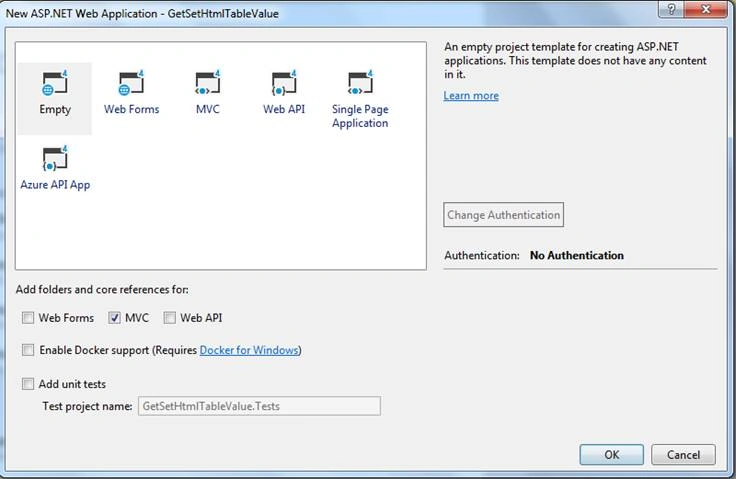
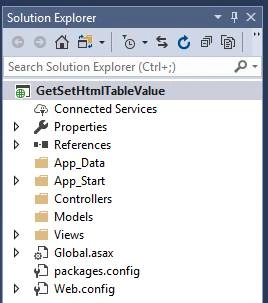
Default View of Solution Explorer.

tblMembers - Table Structure
USE [MbkTest]
GO

/****** Object:  Table [dbo].[tblMembers]    Script Date: 12-Nov-19 7:33:53 PM ******/
SET ANSI_NULLS ON
GO

SET QUOTED_IDENTIFIER ON
GO

SET ANSI_PADDING ON
GO

CREATE TABLE [dbo].[tblMembers](
    [MemberID] [int] IDENTITY(1,1) NOT NULL,
      NULL,
      NULL,
    PRIMARY KEY CLUSTERED 
(
    [MemberID] ASC
)WITH (PAD_INDEX = OFF, STATISTICS_NORECOMPUTE = OFF, IGNORE_DUP_KEY = OFF, ALLOW_ROW_LOCKS = ON, ALLOW_PAGE_LOCKS = ON) ON [PRIMARY]
) ON [PRIMARY]

GO

SET ANSI_PADDING OFF
GO

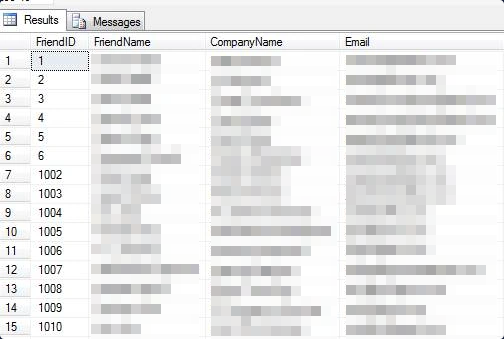
Table sample data view.
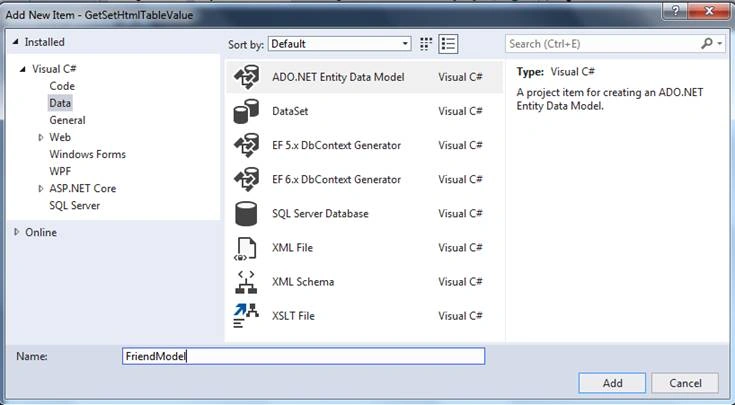
Now right-click on the project and select Add New Item.

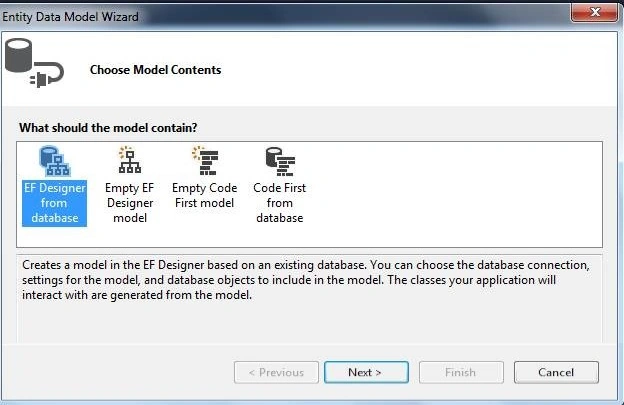
Select EF Designer From the Database then click on the NEXT button.

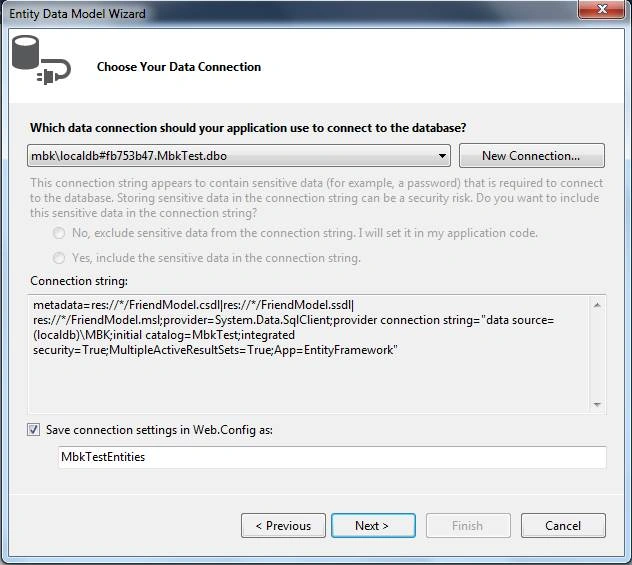
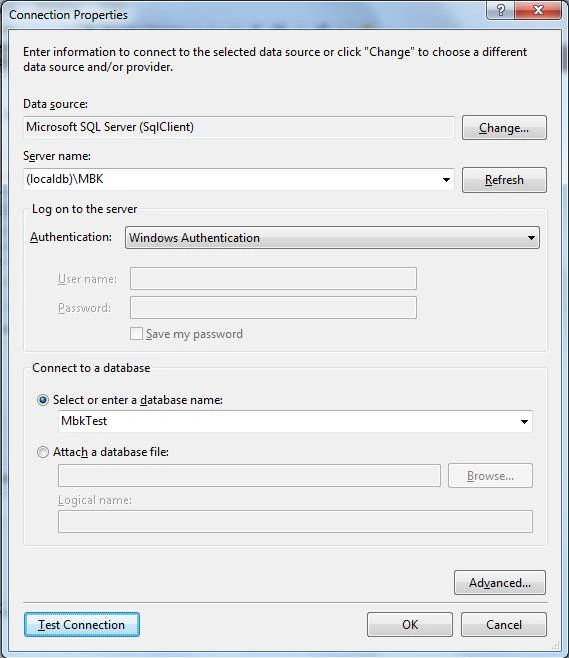
In below dialog box do the following things,

  • Data Source: Microsoft SQL Server.
  • Server Name: Your Sql Server detail.
  • Authentication: As per your SQL server.
  • Select or Enter a database name: Select your database.
  • Click on Test Connection.

Then click on the OK button.


Select the Table(s) of your choice.
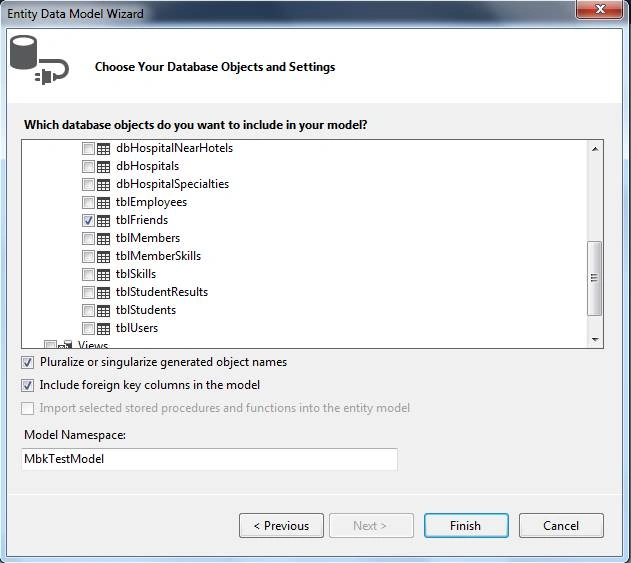

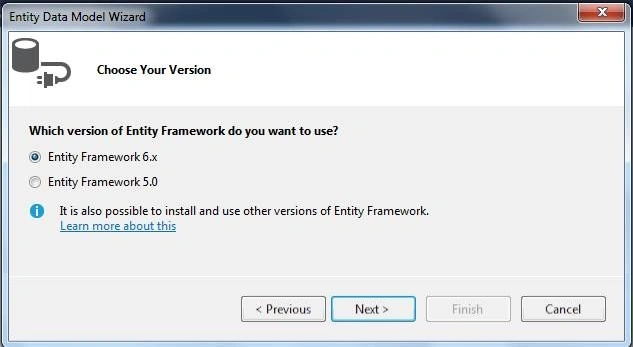
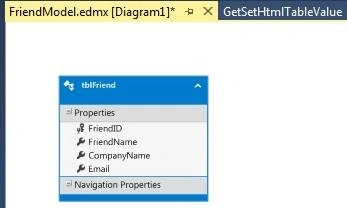
As you click on the FINISH button edmx file will be generated with a selected table(s).

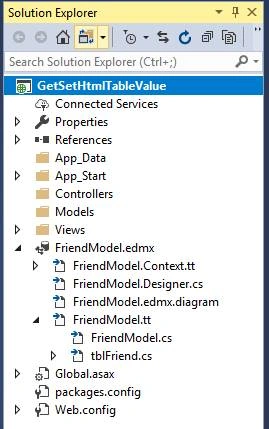
You can see this in the Solution Explorer window.
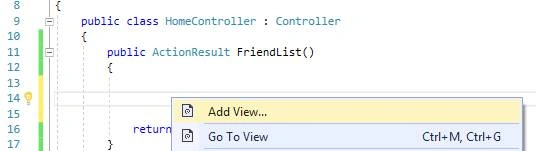
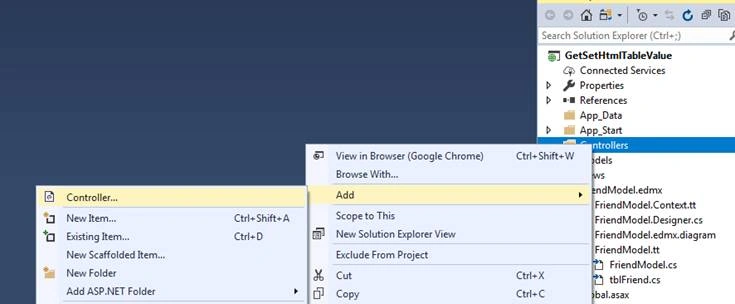
Right-click on the CONTROLLERS folder and click on ADD --> CONTROLLER.
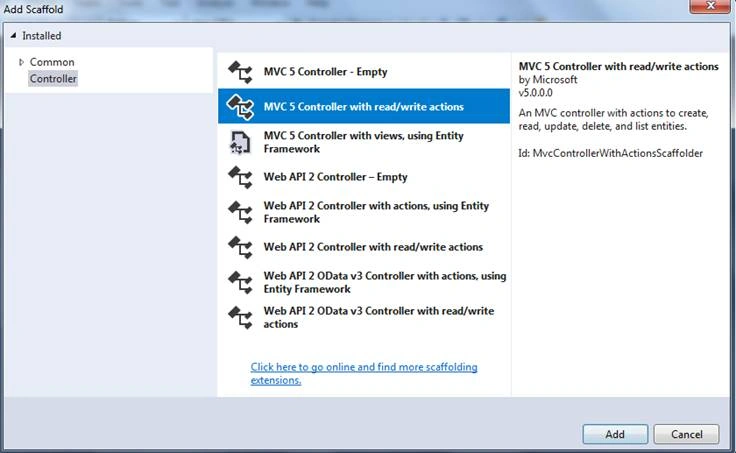
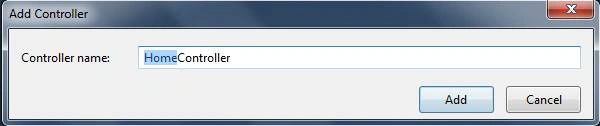
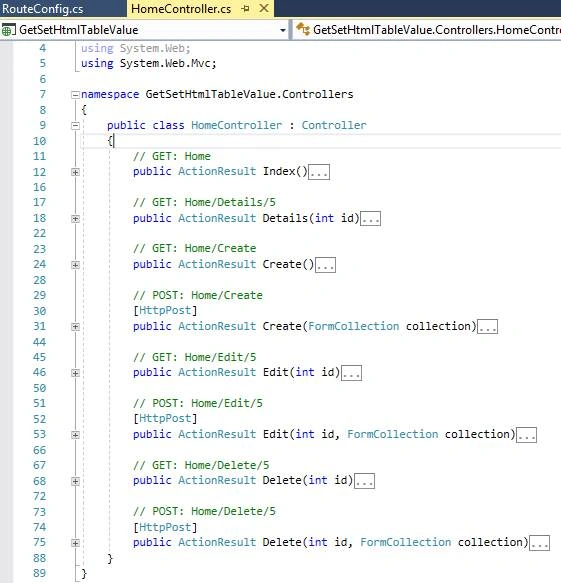
Default Actionmethod of HomeControllers.


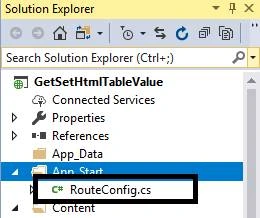
Default View - RouteConfig.cs
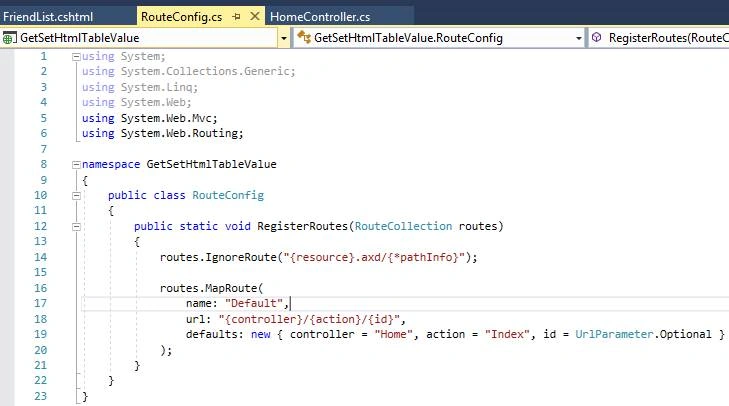
As per the above code default ActionResult “Index” is executing. Now we will change ActionResult (action) to “FriendResult”. After changing/updating the following things in RouteConfig.cs our default action method is FriendResult.

Now it's changed to this,

RouteConfig.cs File Code
using System;
using System.Collections.Generic;
using System.Linq;
using System.Web;
using System.Web.Mvc;
using System.Web.Routing;

namespace GetSetHtmlTableValue
{
    public class RouteConfig
    {
        public static void RegisterRoutes(RouteCollection routes)
        {
            routes.IgnoreRoute("{resource}.axd/{*pathInfo}");

            routes.MapRoute(
                name: "Default",
                url: "{controller}/{action}/{id}",
                defaults: new { controller = "Home", action = "FriendList", id = UrlParameter.Optional }
            );
        }
    }
}


Now press F5, following,
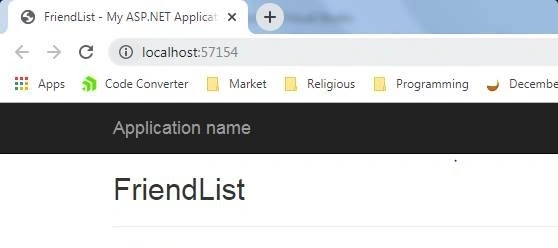
Now Update the following code to the respective files.

HomeController.cs code
using System;
using System.Collections.Generic;
using System.Linq;
using System.Web;
using System.Web.Mvc;

namespace GetSetHtmlTableValue.Controllers
{
    public class HomeController : Controller
    {
        public ActionResult FriendList()
        {
            // Create Instance of EntityFramework dbContext Class
            MbkTestEntities db = new MbkTestEntities();

            // Get all the friends in list collection.
            var FriendList = db.tblFriends.ToList();

            // Send data to view. In view we generate html table with friend datas.
            return View(FriendList);
        }


        // GET: Home
        public ActionResult Index()
        {
            return View();
        }

        // GET: Home/Details/5
        public ActionResult Details(int id)
        {
            return View();
        }

        // GET: Home/Create
        public ActionResult Create()
        {
            return View();
        }

        // POST: Home/Create
        [HttpPost]
        public ActionResult Create(FormCollection collection)
        {
            try
            {
                // TODO: Add insert logic here

                return RedirectToAction("Index");
            }
            catch
            {
                return View();
            }
        }

        // GET: Home/Edit/5
        public ActionResult Edit(int id)
        {
            return View();
        }

        // POST: Home/Edit/5
        [HttpPost]
        public ActionResult Edit(int id, FormCollection collection)
        {
            try
            {
                // TODO: Add update logic here

                return RedirectToAction("Index");
            }
            catch
            {
                return View();
            }
        }

        // GET: Home/Delete/5
        public ActionResult Delete(int id)
        {
            return View();
        }

        // POST: Home/Delete/5
        [HttpPost]
        public ActionResult Delete(int id, FormCollection collection)
        {
            try
            {
                // TODO: Add delete logic here

                return RedirectToAction("Index");
            }
            catch
            {
                return View();
            }
        }
    }
}


FriendList.cshtml code
@* Receiving data from Controller *@
@model IEnumerable<tblFriend>

@* Setting Page Title *@
@{
    ViewBag.Title = "Friend List";
}

<style>
    /* CSS for table and input (textbox) */
    table, td, th {
        border: 1px solid black;
    }

    table, tr {
        border-collapse: collapse;
    }

    input[type=text] {
        width: 100%;
    }

    th {
        height: 50px;
        text-align: center;
    }
</style>

<h2>Friend List</h2>

<input type="button" value="Get All Rows Data" class="btngetvalue" />
<table>
    <thead>
        <tr>
            <th>
                FRIEND NAME
            </th>
            <th>
                COMPANY NAME
            </th>
            <th>
                EMAIL ID
            </th>
            <th>
                ACTION TYPE 1
            </th>
            <th>
                ACTION TYPE 2
            </th>
        </tr>
    </thead>

    <tbody>

        @* Loop Entire Friend list and paste data to textbox(input) *@
        @foreach (var item in Model)
        {
            // for ID purpose writing this code
            var friendid = "friend" + Convert.ToString(item.FriendID);

            <input type="hidden" id="@friendid" value="@item.FriendID" />

            <tr class="">
                <td>
                    <input type="text" value="@item.FriendName" name="FriendName" />
                </td>
                <td>
                    <input type="text" value="@item.CompanyName" name="CompanyName" />
                </td>
                <td>
                    <input type="text" value="@item.Email" name="Email" />
                </td>

                @* Html Button onclick calling UPDATEROW which passing parameter of friendid. *@
                <td><input type="button" value="Get Row Value Type 1" class="btnrowvalue1" /></td>
                <td><input type="button" value="Get Row Value Type 2" class="btnrowvalue2" /></td>
            </tr>
        }
    </tbody>

</table>

<label id="allrowsdata"><b>All Row Data Come Here</b></label>


Output
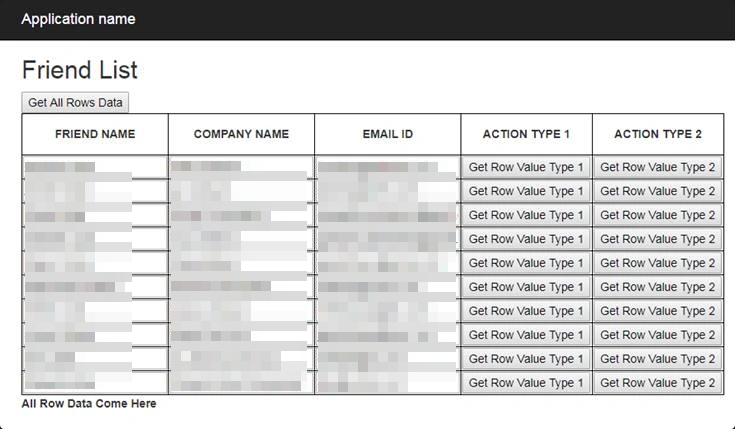
RouteConfig.cs CODE
using System;
using System.Collections.Generic;
using System.Linq;
using System.Web;
using System.Web.Mvc;
using System.Web.Routing;

namespace GetSetHtmlTableValue
{
    public class RouteConfig
    {
        public static void RegisterRoutes(RouteCollection routes)
        {
            routes.IgnoreRoute("{resource}.axd/{*pathInfo}");

            routes.MapRoute(
                name: "Default",
                url: "{controller}/{action}/{id}",
                defaults: new { controller = "Home", action = "FriendList", id = UrlParameter.Optional }
            );
        }
    }
}


_Layout. cshtml CODE
<!DOCTYPE html>
<html>
<head>
    <meta charset="utf-8" />
    <meta name="viewport" content="width=device-width, initial-scale=1.0">
    <title>@ViewBag.Title - My ASP.NET Application</title>
    <link href="~/Content/Site.css" rel="stylesheet" type="text/css" />
    <link href="~/Content/bootstrap.min.css" rel="stylesheet" type="text/css" />
    <script src="~/Scripts/modernizr-2.6.2.js"></script>
    <script src="~/Scripts/jquery-1.10.2.min.js"></script>
    <script src="~/Scripts/bootstrap.min.js"></script>
</head>
<body>
    <div class="navbar navbar-inverse navbar-fixed-top">
        <div class="container">
            <div class="navbar-header">
                <button type="button" class="navbar-toggle" data-toggle="collapse" data-target=".navbar-collapse">
                    <span class="icon-bar"></span>
                    <span class="icon-bar"></span>
                    <span class="icon-bar"></span>
                </button>
                @Html.ActionLink("Application name", "Index", "Home", new { area = "" }, new { @class = "navbar-brand" })
            </div>
            <div class="navbar-collapse collapse">
                <ul class="nav navbar-nav">
                </ul>
            </div>
        </div>
    </div>

    <div class="container body-content">
        @RenderBody()
        <hr />
        <footer>
            <p>© @DateTime.Now.Year - My ASP.NET Application</p>
        </footer>
    </div>

</body>
</html>

HomeController.cs CODE
using System;
using System.Collections.Generic;
using System.Linq;
using System.Web;
using System.Web.Mvc;

namespace GetSetHtmlTableValue.Controllers
{
    public class HomeController : Controller
    {
        public ActionResult FriendList()
        {
            // Create Instance of EntityFramework dbContext Class
            MbkTestEntities db = new MbkTestEntities();

            // Get all the friends in list collection.
            var FriendList = db.tblFriends.Take(10).ToList();

            // send data to view. In view we generate html table with friend datas.
            return View(FriendList);
        }

        // GET: Home
        public ActionResult Index()
        {
            return View();
        }

        // GET: Home/Details/5
        public ActionResult Details(int id)
        {
            return View();
        }

        // GET: Home/Create
        public ActionResult Create()
        {
            return View();
        }

        // POST: Home/Create
        [HttpPost]
        public ActionResult Create(FormCollection collection)
        {
            try
            {
                // TODO: Add insert logic here

                return RedirectToAction("Index");
            }
            catch
            {
                return View();
            }
        }

        // GET: Home/Edit/5
        public ActionResult Edit(int id)
        {
            return View();
        }

        // POST: Home/Edit/5
        [HttpPost]
        public ActionResult Edit(int id, FormCollection collection)
        {
            try
            {
                // TODO: Add update logic here

                return RedirectToAction("Index");
            }
            catch
            {
                return View();
            }
        }

        // GET: Home/Delete/5
        public ActionResult Delete(int id)
        {
            return View();
        }

        // POST: Home/Delete/5
        [HttpPost]
        public ActionResult Delete(int id, FormCollection collection)
        {
            try
            {
                // TODO: Add delete logic here

                return RedirectToAction("Index");
            }
            catch
            {
                return View();
            }
        }
    }
}

FriendList.cshtml CODE
@* Receiving data from Controller *@
@model IEnumerable<tblFriend>

@* Setting Page Title *@
@{
    ViewBag.Title = "Friend List";
}

<style>
    /* CSS for table and input (textbox) */
    table, td, th {
        border: 1px solid black;
    }

    table, tr {
        border-collapse: collapse;
    }

    input[type=text] {
        width: 100%;
    }

    th {
        height: 50px;
        text-align: center;
    }
</style>

<script>
    $(document).ready(function () {
        // Get All Rows Value of HTML Value
        $(".btngetvalue").click(function () {
            var address = [];
            $("table tr td input[type='text']").each(function () {
                var textval = $(this).val();
                address.push(textval);
            });
            var wholetabledata = address.toString();
            $("#allrowsdata").text("ALL ROWS DATA: \n\n\n" + wholetabledata);
        });

        // METHOD 1 to get Table Row Value
        // Method 1 is good and reliable than Method 2
        $(".btnrowvalue1").click(function () {
            var tr = $(this).closest('tr');
            var FirstCol = tr.find('input[name="FriendName"]').val();
            var SecondCol = tr.find('input[name="CompanyName"]').val();
            var ThirdCol = tr.find('input[name="Email"]').val();
            alert('Type1 : ' + FirstCol + ' ' + SecondCol + ' ' + ThirdCol);
        });


        // METHOD 2 to get Table Row Value
        $(".btnrowvalue2").click(function () {
            var tr = $(this).closest('tr');
            var FirstCol = tr.find('td:eq(0) input').val();;
            var SecondCol = tr.find('td:eq(1) input').val();
            var ThirdCol = tr.find('td:eq(2) input').val();
            alert('Type2 : ' + FirstCol + ' ' + SecondCol + ' ' + ThirdCol);
        });
    });
</script>

<h2>Friend List</h2>

<input type="button" value="Get All Rows Data" class="btngetvalue" />
<table>
    <thead>
        <tr>
            <th>
                FRIEND NAME
            </th>
            <th>
                COMPANY NAME
            </th>
            <th>
                EMAIL ID
            </th>
            <th>
                ACTION TYPE 1
            </th>
            <th>
                ACTION TYPE 2
            </th>
        </tr>
    </thead>

    <tbody>

        @* Loop Entire Friend list and paste data to textbox(input) *@
        @foreach (var item in Model)
        {
            //for ID purpose writing this code
            var friendid = "friend" + Convert.ToString(item.FriendID);

            <input type="hidden" id="@friendid" value="@item.FriendID" />

            <tr class="">
                <td>
                    <input type="text" value="@item.FriendName" name="FriendName" />
                </td>
                <td>
                    <input type="text" value="@item.CompanyName" name="CompanyName" />
                </td>
                <td>
                    <input type="text" value="@item.Email" name="Email" />
                </td>

                @* Html Button onclick calling UPDATEROW which passing parameter of friendid.*@
                <td><input type="button" value="Get Row Value Type 1" class="btnrowvalue1" /> </td>
                <td><input type="button" value="Get Row Value Type 2" class="btnrowvalue2" /> </td>
            </tr>
        }
    </tbody>

</table>

<label id="allrowsdata"><b>All Row Data Come Here</b></label>


End of Receiving Table Data Client Side.


ASP.NET MVC 6 Hosting - HostForLIFE.eu :: ASP.NET Core MVC Master Role-Based Authorization with Identity

clock October 1, 2026 13:43 by author Peter

Real-world applications frequently need more precise control, even while Role-Based Authorization manages broad access levels like Admin or User. What happens if access is contingent on a number of factors, such as the user's age, location, or ownership of the particular resource they are attempting to modify? ASP.NET Core offers Policy-Based Authorization for these complex situations. A policy, statements, assertions, assertions, constructed.

This is a building that covers everything from scratch.

Step 1: Enabling Role Management in Program.cs
By default, ASP.NET Core Identity configures user authentication stores. To support roles, you must chain .AddRoles<IdentityRole>() into your service registration so that Entity Framework Core can scaffold and manage the underlying role tables (AspNetRoles, AspNetUserRoles).

Update your Program.cs configuration:
using Microsoft.AspNetCore.Identity;
using Microsoft.EntityFrameworkCore;
using MvcAuthenticationDemo.Data;


var builder = WebApplication.CreateBuilder(args);

// Add Database Context
builder.Services.AddDbContext<ApplicationDbContext>(options =>
    options.UseSqlServer(builder.Configuration.GetConnectionString("DefaultConnection")));

// Add Identity with Role Support
builder.Services.AddDefaultIdentity<IdentityUser>(options => 
{
    options.SignIn.RequireConfirmedAccount = false;
    options.Password.RequireDigit = true;
    options.Password.RequiredLength = 6;
})
.AddRoles<IdentityRole>() // <-- Enables Role Manager services
.AddEntityFrameworkStores<ApplicationDbContext>();

builder.Services.AddControllersWithViews();

var app = builder.Build();

// Pipeline middleware configuration...
app.UseHttpsRedirection();
app.UseStaticFiles();
app.UseRouting();

app.UseAuthentication();
app.UseAuthorization();

app.MapControllerRoute(
    name: "default",
    pattern: "{controller=Home}/{action=Index}/{id?}");


Step 2: Bootstrapping Roles and an Admin User via Seeding
To prevent your application from launching with zero roles or administrative accounts, you can seed default roles (Admin, User) and create a default super-admin user directly when the application starts up.

Add this database seeding block right before app.Run(); in Program.cs:
// --- Role and Admin Seeding Block ---
using (var scope = app.Services.CreateScope())
{
    var services = scope.ServiceProvider;
    try
    {
        var roleManager = services.GetRequiredService<RoleManager<IdentityRole>>();
        var userManager = services.GetRequiredService<UserManager<IdentityUser>>();

        // 1. Create Default Roles
        string[] roleNames = { "Admin", "Manager", "User" };
        foreach (var roleName in roleNames)
        {
            if (!await roleManager.RoleExistsAsync(roleName))
            {
                await roleManager.CreateAsync(new IdentityRole(roleName));
            }
        }

        // 2. Create Default Admin User
        string adminEmail = "[email protected]";
        var adminUser = await userManager.FindByEmailAsync(adminEmail);
        if (adminUser == null)
        {
            adminUser = new IdentityUser 
            { 
                UserName = adminEmail, 
                Email = adminEmail, 
                EmailConfirmed = true 
            };
            
            // Create user with a secure temporary password
            var createAdmin = await userManager.CreateAsync(adminUser, "Admin@12345");
            if (createAdmin.Succeeded)
            {
                await userManager.AddToRoleAsync(adminUser, "Admin");
            }
        }
    }
    catch (Exception ex)
    {
        var logger = services.GetRequiredService<ILogger<Program>>();
        logger.LogError(ex, "An error occurred while seeding the database with roles.");
    }
}
// ------------------------------------

app.Run();


Step 3: Protecting Controllers and Action Methods
Once roles are established, securing your endpoints is straightforward using the built-in [Authorize] attribute paired with the Roles parameter. ASP.NET Core will automatically evaluate the authenticated user's claims and reject unauthorized requests with a 403 Forbidden response.

Securing an Entire Controller

If an entire dashboard or management suite should only be accessible by administrators, apply the attribute at the class level:
using Microsoft.AspNetCore.Authorization;
using Microsoft.AspNetCore.Mvc;

[Authorize(Roles = "Admin")]
public class AdminController : Controller
{
    public IActionResult Index()
    {
        return View(); // Only accessible by users in the 'Admin' role
    }
}


Securing Specific Action Methods (Multiple Roles)
You can target individual actions and allow multiple comma-separated roles access to specific methods:
[Authorize(Roles = "Admin, Manager")]
[HttpPost]
public IActionResult DeleteRecord(int id)
{
    // Accessible by users in either 'Admin' or 'Manager' roles
    return RedirectToAction("Index");
}

Step 4: Conditionally Rendering UI Elements in Razor Views
Authorization isn't just about blocking backend controller routes; it's also about keeping unauthorized options hidden from the user interface to improve user experience.
You can check whether a user belongs to a role directly inside your Razor layouts or views using User.IsInRole():

HTML
<ul class="navbar-nav ms-auto">
    <li class="nav-item">
        <a class="nav-link text-dark" asp-controller="Home" asp-action="Index">Home</a>
    </li>

    @if (User.Identity != null && User.Identity.IsAuthenticated)
    {
        <!-- Show for any logged-in user -->
        <li class="nav-item">
            <span class="nav-link text-muted">Hello, @User.Identity.Name</span>
        </li>

        @if (User.IsInRole("Admin"))
        {
            <!-- Show exclusively for Administrators -->
            <li class="nav-item">
                <a class="nav-link text-danger fw-bold" asp-controller="Admin" asp-action="Index">Admin Panel</a>
            </li>
        }

        <li class="nav-item">
            <form asp-controller="Account" asp-action="Logout" method="post">
                <button type="submit" class="nav-link btn btn-link text-dark">Logout</button>
            </form>
        </li>
    }
    else
    {
        <li class="nav-item">
            <a class="nav-link text-dark" asp-controller="Account" asp-action="Login">Login</a>
        </li>
    }
</ul>


Conclusion
By integrating ASP.NET Core Identity roles with Program.cs configurations, [Authorize(Roles = "...")] attributes, and conditional Razor views, you establish a resilient, secure foundation for multi-tiered application architecture.


About HostForLIFE.eu

HostForLIFE.eu is European Windows Hosting Provider which focuses on Windows Platform only. We deliver on-demand hosting solutions including Shared hosting, Reseller Hosting, Cloud Hosting, Dedicated Servers, and IT as a Service for companies of all sizes.

We have offered the latest Windows 2016 Hosting, ASP.NET Core 2.2.1 Hosting, ASP.NET MVC 6 Hosting and SQL 2017 Hosting.


Month List

Tag cloud

Sign in